OKBrowser Proxy Configuration Guide
Introduction
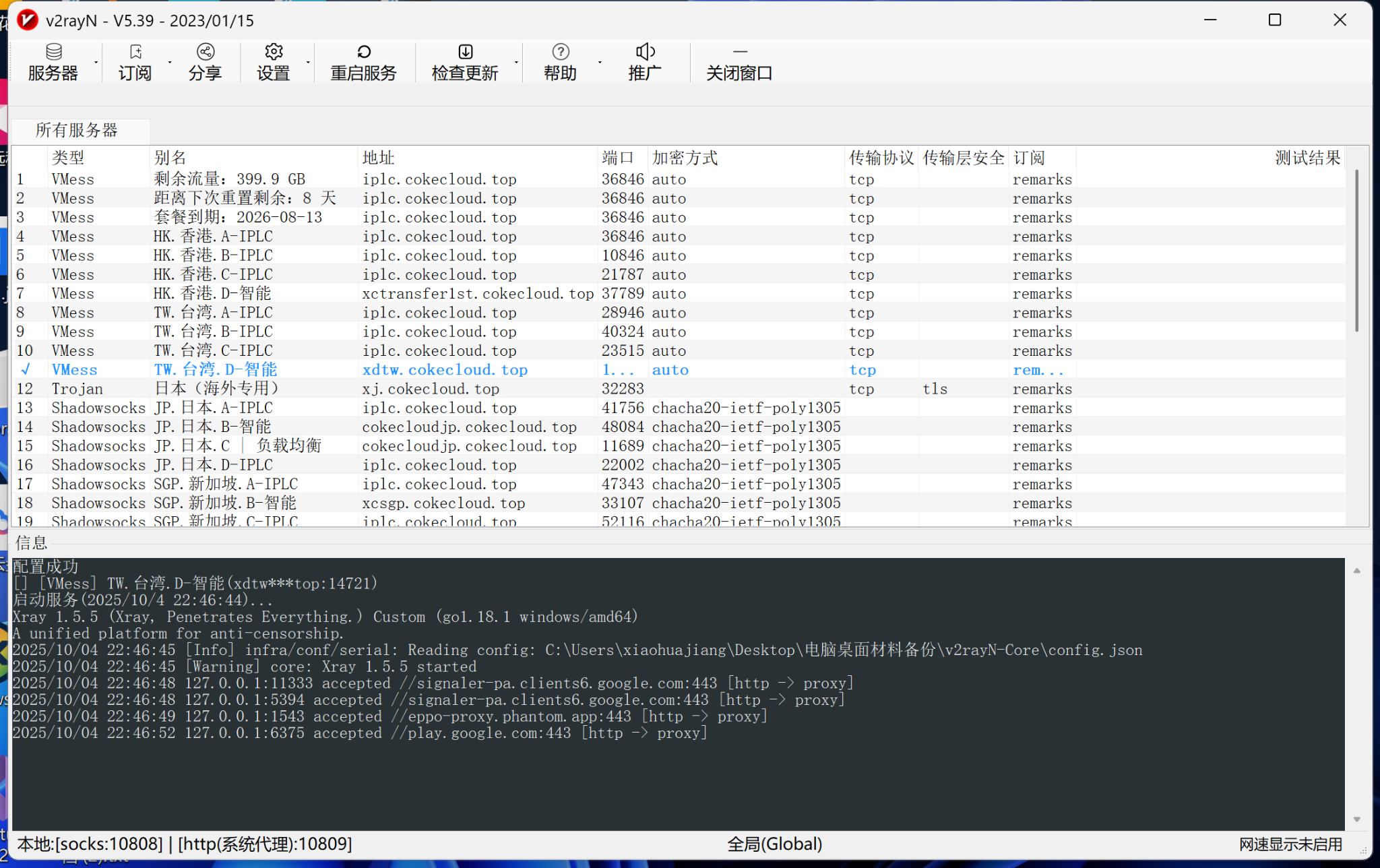
OKBrowser is a fingerprint browser supporting multi-account management. By configuring a proxy IP, each browser environment can be assigned an independent network identity, enabling account isolation and risk control.
Prerequisites
Before starting, make sure you have:
- OKBrowser client installed
- ColaProxy account created and logged in
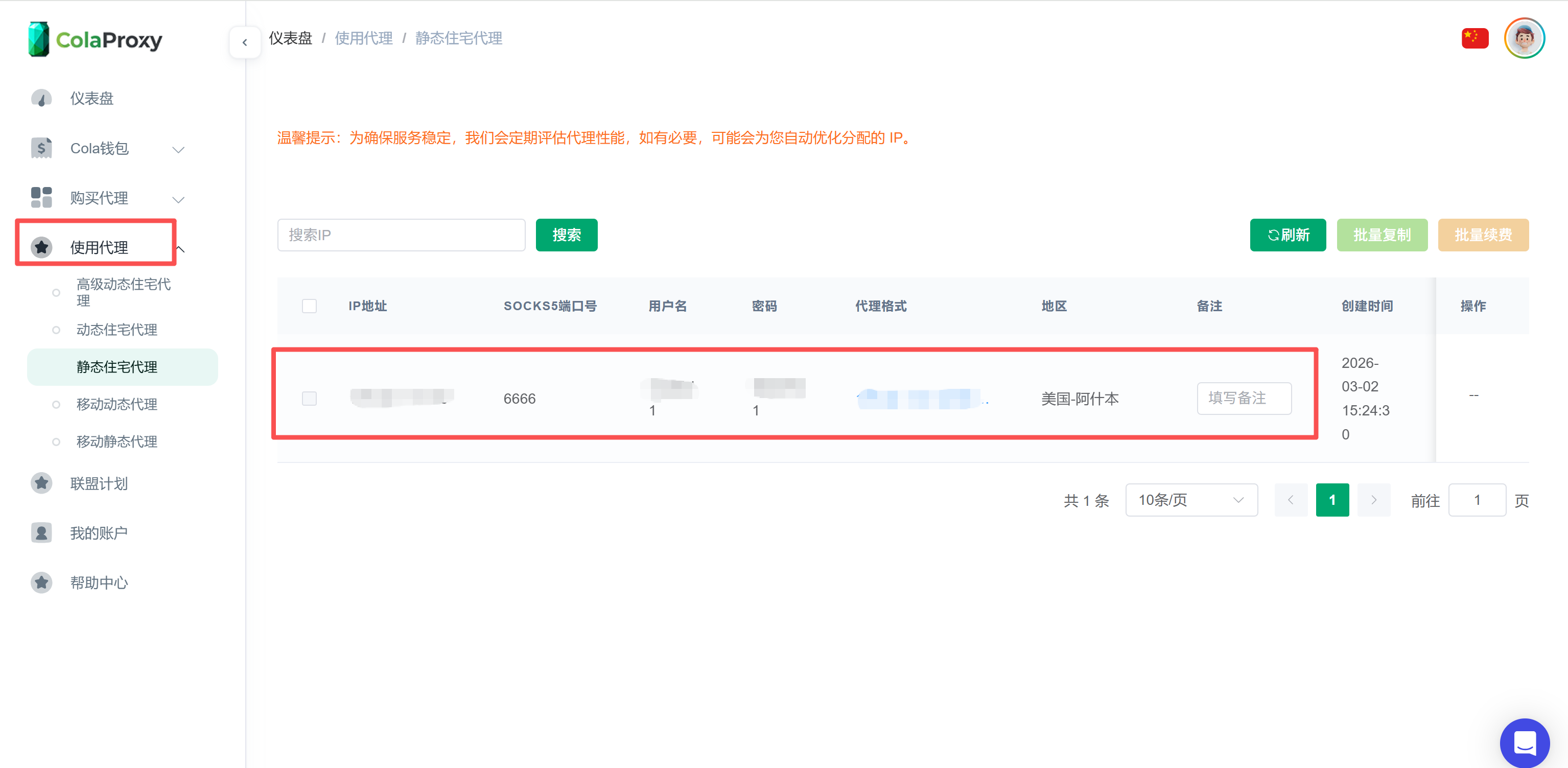
- Proxy information ready:
- Host (proxy address)
- Port
- Username
- Password
Configuration Steps
Step 1: Create Browser Environment
- Open OKBrowser (okbrow.com)
Step 2: Create a Window
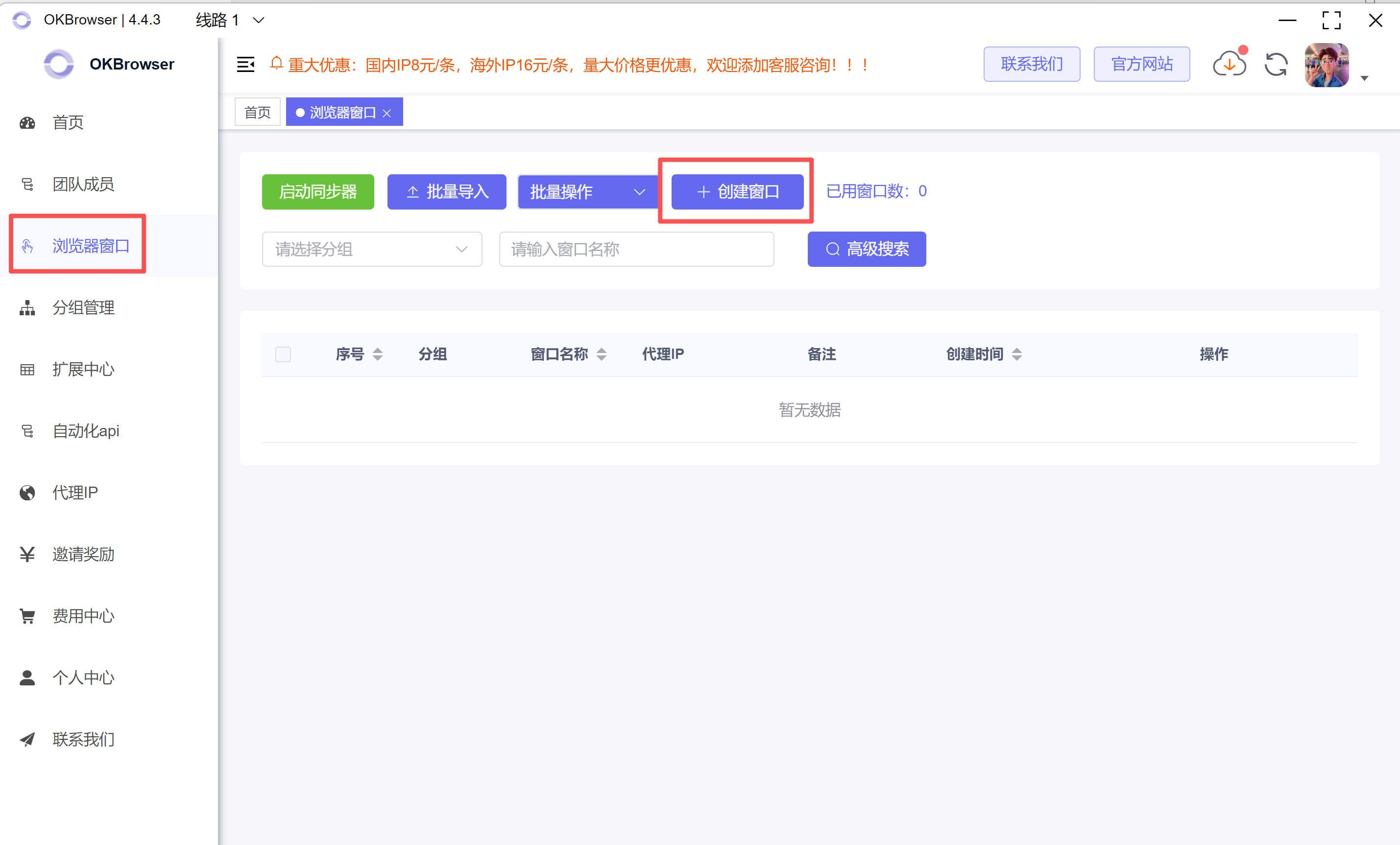
- Enter the browser window interface
- Click "Create Window"
Step 3: Configure Proxy
- Select proxy type:
- HTTP / HTTPS / SOCKS5 (SOCKS5 recommended)
- Fill in proxy information (example):
Host: proxy.colaproxy.com
Port: 8000
Username: your_username
Password: your_password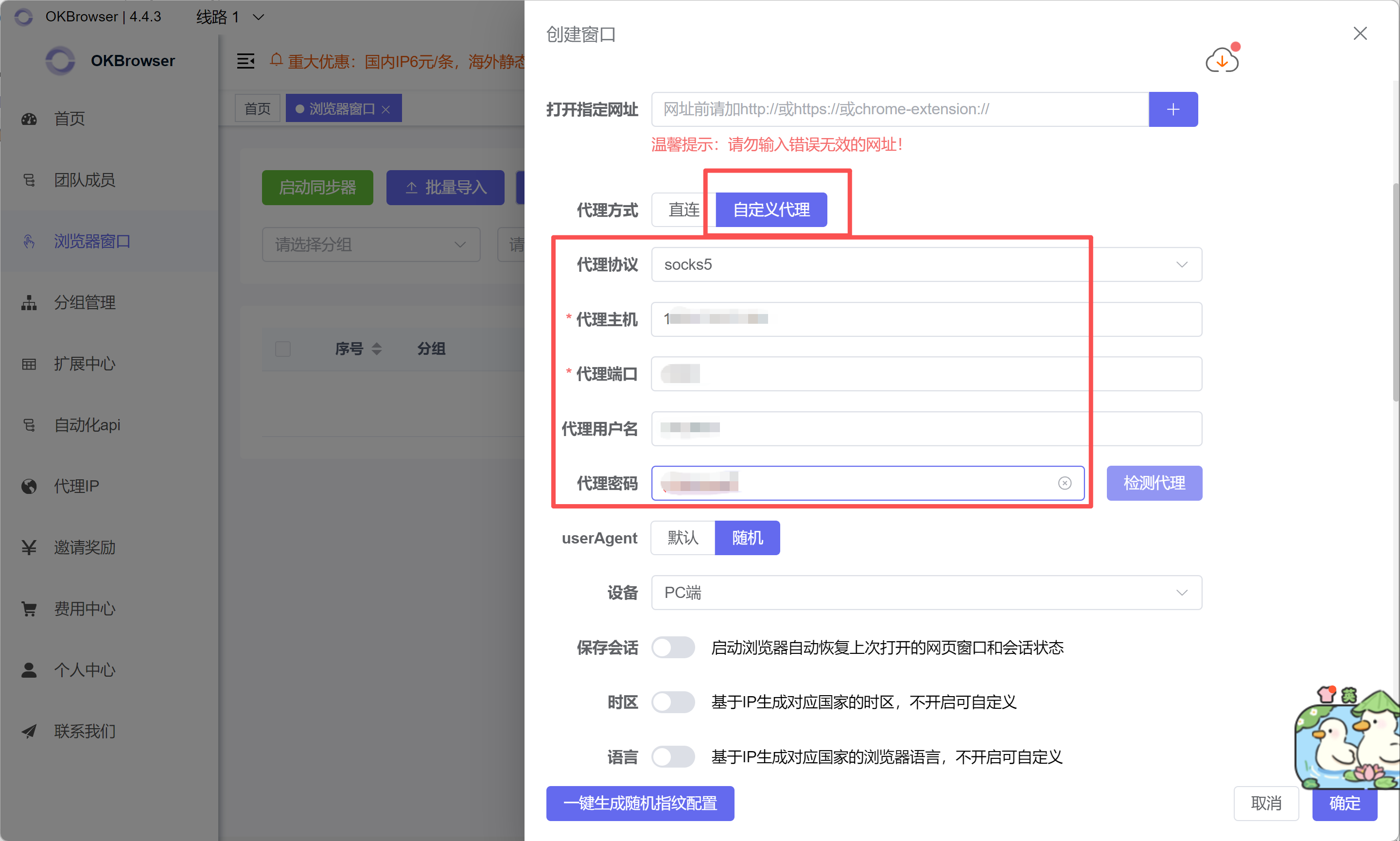
Field description:
- Host: Proxy server address
- Port: Port number (some proxies use port to control IP rotation)
- Username / Password: Authentication credentials
Step 4: Test Proxy Connection
Click Test Proxy
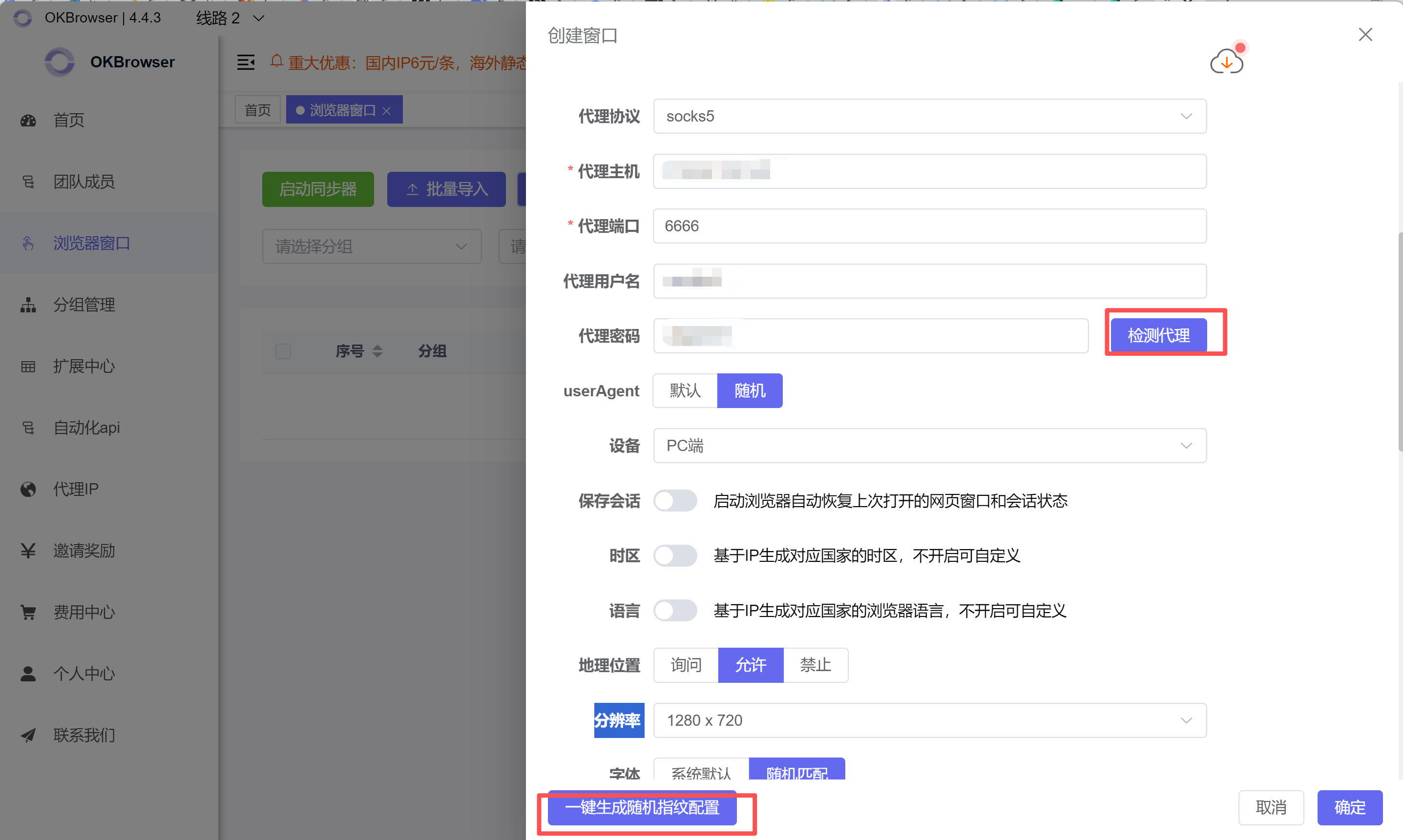
Result interpretation:
- Success: Proxy connection is working
- Failure: Check proxy parameters or network
Step 5: Save and Launch
- Click One-click Random Fingerprint
- Environment creation complete
OKBrowser FAQ for China Region
Q1: Why can't I connect after adding a proxy IP in OKBrowser?
This is one of the most common issues in China. In mainland China's network environment, proxy IPs cannot directly access external websites — a relay tool ("ladder") is required.
Q2: What tools must be used alongside OKBrowser?
OKBrowser requires one of the following proxy relay tools:
- Clash (recommended)
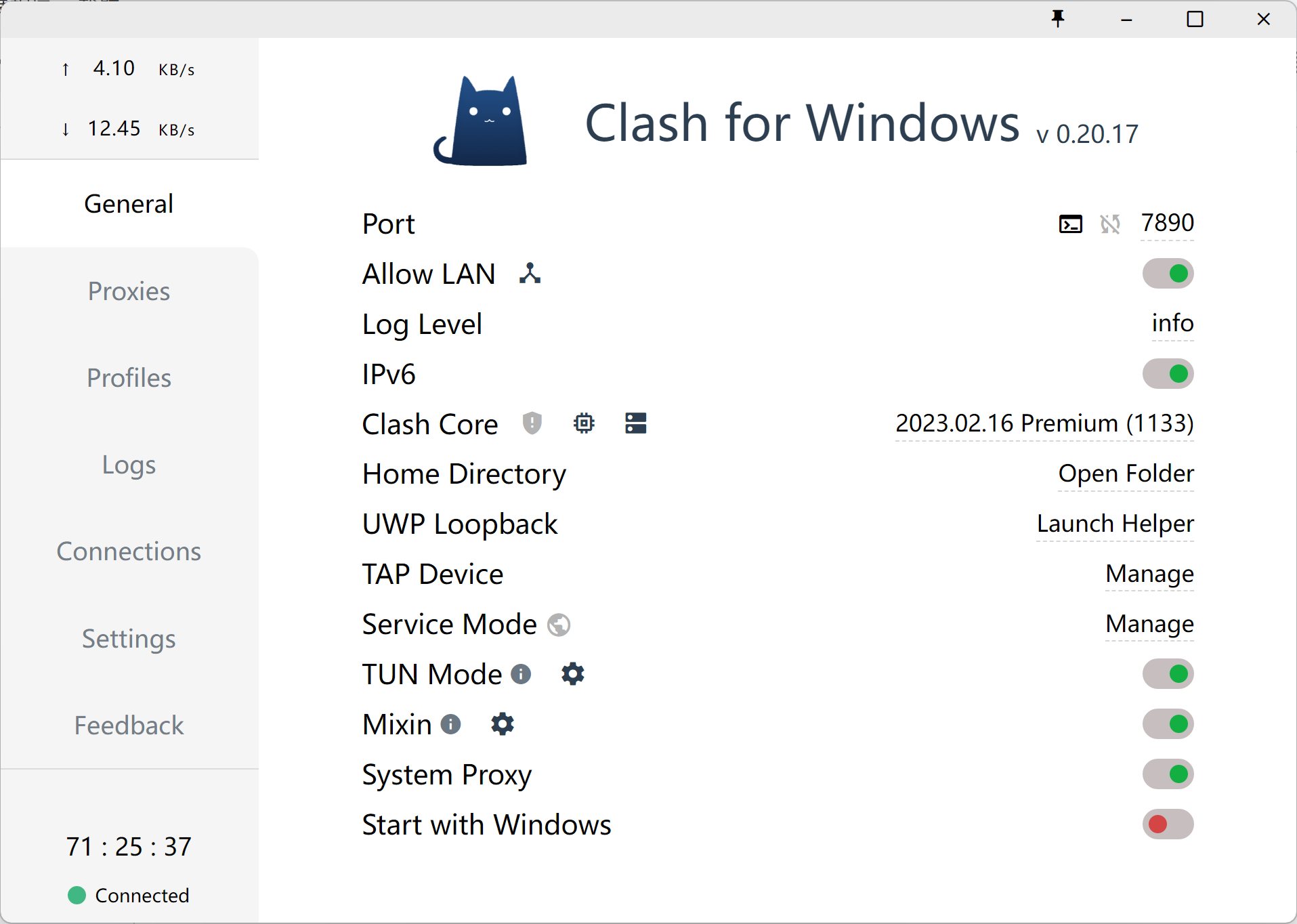
- V2Ray